AI Image Generator
Aspect ratio
Image settings
Skills
This session
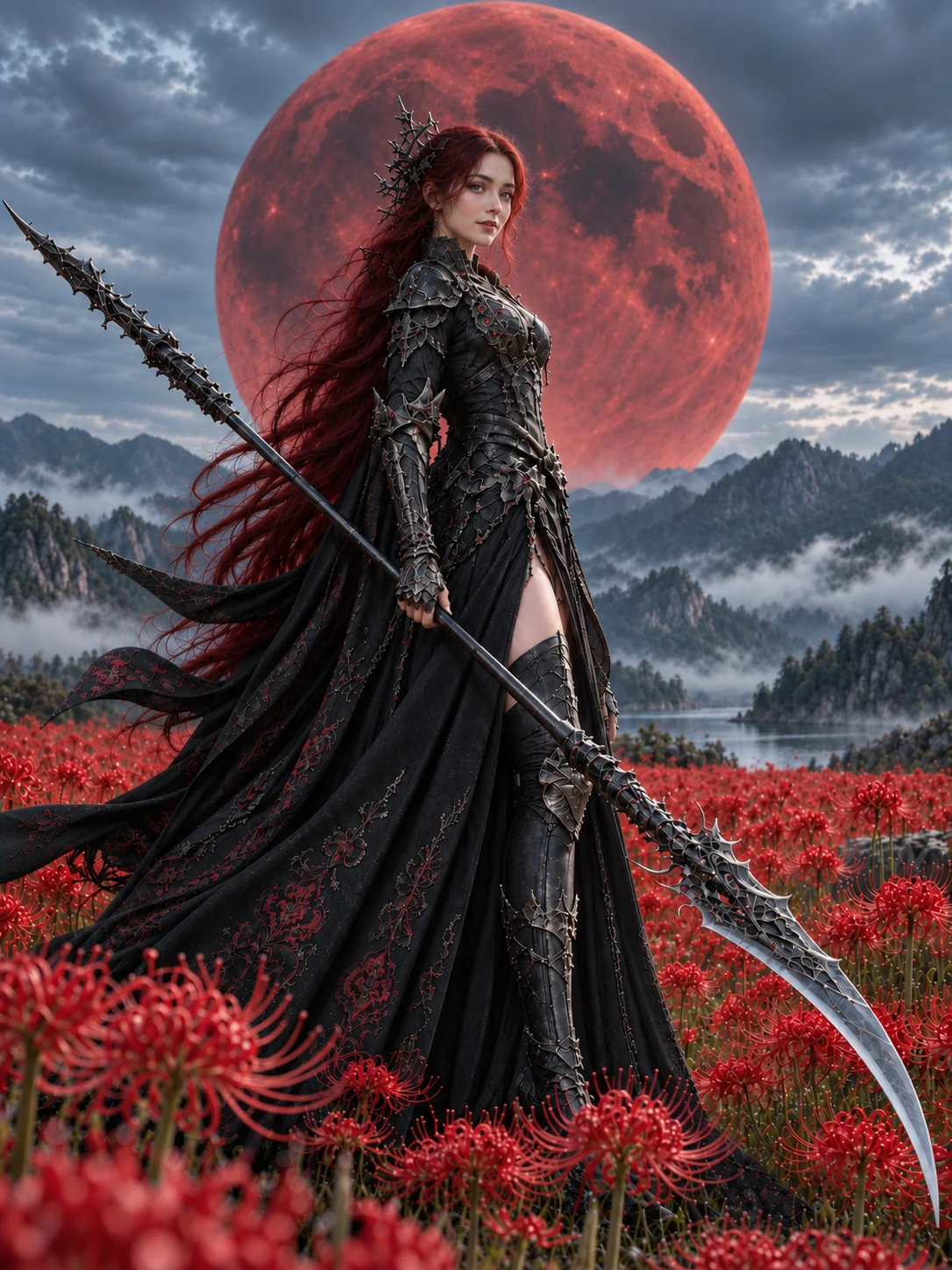 Example
A strikingly beautiful adult Western European woman, about 27, with fair skin, soft European features, light eyes, a gentle oval face, and long dark-red hair, stands at ease in flowing black ceremonial armor in a field of blood-red spider lilies beneath an enormous centered crimson full moon. She holds exactly one elegant long-handled glaive. Use a vertical full-length composition with a calm, kind expression and a clean readable silhouette. Diffused moonlight, gentle falloff, and lower contrast keep the fabric and hair soft; the moon and flowers stay a clear crimson and the sky stays cool gray-blue, with no yellow overlay. Render a clear cinematic look with visible embroidery, hair strands, and flower stamens. No harsh rim light, crushed blacks, duplicated limbs, malformed hands, text, logos, or watermark.
Browse all
AI image generator styles to explore
Pick a look and it rides along with whatever you write — your prompt stays your own words.
AI image generator: your questions answered
What can I make with this AI image generator?
Start with a written description for original artwork, portraits or poster concepts. Switch to Image to Image to add a reference. For product photography ideas, describe the item, background and lighting, then review the generated details before using the result.
How do I try the AI image generator for free?
Free credits for eligible new accounts. Use them in the AI image generator, choose a model and check the displayed cost before submitting. This is a limited credit gift, not unlimited free generation. Results appear in This session, where you can reuse a prompt or add an image as a reference. The offer must be enabled with a positive credit amount. A usable network identity is required, and the gift is limited to once per account and network identity. Mainstream email domains such as Gmail, Outlook and iCloud qualify by default; the configured list may differ. Credits expire after the configured validity period, or do not expire if no positive period is set.
How should I write an image prompt?
Name the subject, composition, light source and medium. Try: “A ceramic mug on pale wood, soft light from the left, a plain background, room above for a headline.” Add details that matter to your layout and say what should stay out of frame. Check the result, then change one instruction at a time.
When should I use a reference image?
Use a reference when an existing subject or composition should guide the next image. In Image to Image, choose a compatible model, attach your picture and explain what changes and what remains. For a background swap, name the new setting and ask to preserve the subject, proportions and label. The model re-renders the frame; it is not a pixel-exact selection tool. Compare edges, faces, colors and lettering with the source before using the image for a listing.
How do model, size and quantity affect a request?
Choose the model first, then check its aspect ratios and output controls. Options differ between models. The displayed total reflects your settings and quantity. Start with one image when testing an uncertain brief; request alternatives when you know what you want to compare. Check the quote again after changing the model, size, quality or quantity.
What should I check in the finished image?
Open the result in This session. Check the composition, then zoom in on labels, hands and object edges. View it at the intended display size too. You can download it, reuse its prompt or add it as a reference. Find previous work in your Library. If the task fails, read its feedback before retrying; a completed image that misses your brief needs a revision.