
AI Hair Color Changer: Preview 9 Shades
Use an AI hair color changer to preview nine shades on your photo. Get hair-only prompts, verified credit costs and fixes for skin shifts and stray strands.
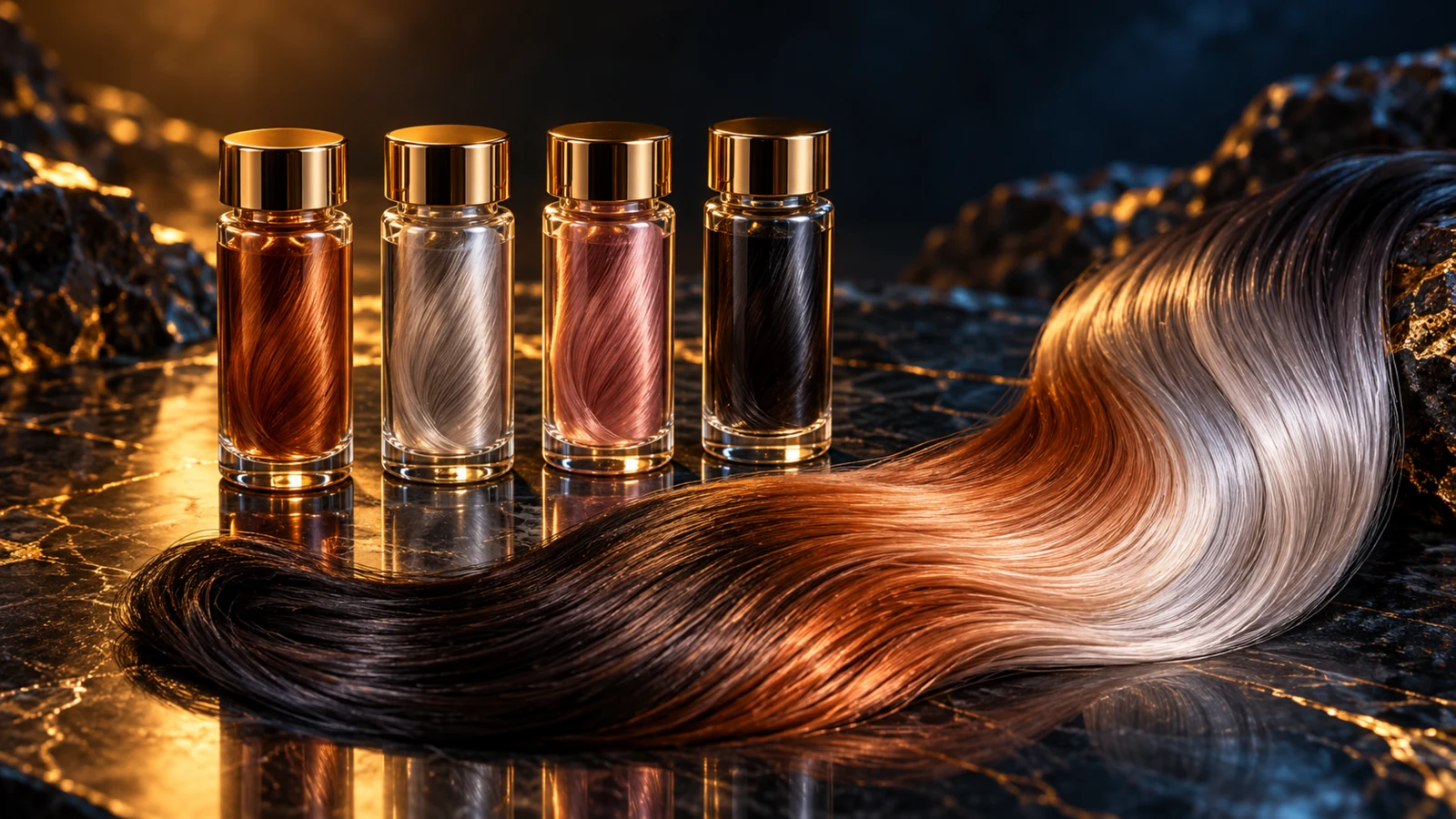
An AI hair color changer can preview a new shade on your own photo before you dye it. In SynthPulse, upload a clear portrait in image-to-image mode, describe the hair color, then ask the model to preserve your face, skin and background. Treat the result as a visual reference for a stylist: it cannot predict what dye will do to your actual hair.
Start with one photo and two or three colors you're seriously considering. A flattering portrait is easy to like; a useful comparison needs the same face and lighting in every version. The prompts below are examples to adapt, not tested before-and-after results.
Set up an AI hair color changer with your own photo
Use a front-facing or slightly turned portrait taken in soft daylight. Keep the entire hair outline visible, including the crown and ends. If your hair disappears into a dark wall, take another photo against a lighter background before spending credits.
Avoid colored bathroom lights, beauty filters and hard sunlight across half your head. Those conditions make it harder to tell whether the edit changed your hair or the light falling on it. A plain shirt also helps you spot color spilling onto clothing.
For curls, leave enough room around the silhouette to see individual edges. For a fringe, make sure it isn't hidden under sunglasses. Keep your usual parting: moving it would change the comparison you're trying to make.
Open the SynthPulse Image studio, choose image-to-image mode and attach the portrait. JPEG, PNG and WebP are accepted; the creation form limits each reference file to 3 MB. If yours is larger, export a smaller copy while keeping the face and hair clear. You only need one reference for this exercise.
Choose a model that accepts images, match the output shape to your portrait and set quantity to one. Leave optional prompt enhancement off for the first comparison so you can keep the wording under your control. It has a separate charge if you use it.
After adding a prompt, check the quote and generate one image. Follow its task status on the creation page, then inspect the returned image before paying for a revision. If the task fails, read the displayed error before trying again.
Choose an upload-compatible model and check credits
These four options accept uploaded references in SynthPulse's image workflow. Prices below reflect the repository configuration checked on October 29, 2026, in credits per image:
- Nano Banana (
google/nano-banana): 10 credits, with one output-size option. - Seedream 5.0 Lite (
seedream/5-lite-image-to-image): 14 credits at its basic tier, corresponding to 2K output. - Nano Banana 2 (
nano-banana-2): 20 credits at 1K or 30 at 2K. - Seedream 5.0 Pro (
seedream/5-pro-image-to-image): 18 credits at 1K or 36 at 2K.
Pick Nano Banana if your first concern is keeping the attempt inexpensive. Lite is another budget option when you want its basic 2K output. Neither price nor pixel count proves which model will keep your face closer to the source. The Nano Banana model guide and Seedream model guide explain their wider settings.
Hair previews use the ordinary image-generation quote, with no separate hair recoloring fee. Check the displayed total after attaching your photo and choosing settings; live configuration can differ from this snapshot.
For a concrete budget, three separate Nano Banana 2 attempts at 1K cost 3 × 20 = 60 credits. Reserve another 20 for one correction, making an 80-credit plan with enhancement off. That budget covers three color attempts and one correction, without guaranteeing a usable preview from each. Submit each color separately with quantity set to one. SynthPulse accepts at most two outputs per submission; requesting two repeats the same brief rather than assigning a different color to each.
Write a recoloring prompt that preserves your face
Keep the change request narrow. Phrases such as "glamorous makeover" invite changes to makeup and styling that make the color harder to judge.
Use this copper example as your template, replacing only the color sentence for each version:
Change only the scalp hair in this reference photo to a muted medium copper with a brown base. Keep the existing haircut, parting, length, curls and individual flyaways. Preserve the person's facial features, skin tone, eyebrows, eyelashes, makeup, clothing and background. Keep the original lighting and exposure. Retain strand texture and natural shadows within the hair. Do not retouch the face or add accessories.
The phrase "scalp hair" helps distinguish the target from eyebrows and lashes. It still isn't a mask. SynthPulse's reference workflow has no region-selection brush or exact color-replacement control, so you must inspect the rest of the frame after generation. The broader AI color changer instructions cover product and clothing edits; keep this brief about hair.
Suppose your source shows shoulder-length dark brown hair, a center part and a few loose strands over a cream sweater. Keep those details fixed. Request copper first, then ash blonde, then soft black from the original photo. Don't feed each recolored result into the next attempt: any face or edge changes would become part of the next reference.
Try on hair color with AI: nine color prompts
Replace the template's first sentence with one of these. Keep its preservation instructions attached. Choose the placement as carefully as the shade, especially for highlights.
Copper with a brown base
Change only the scalp hair to muted medium copper with a brown base. Keep the roots slightly deeper and the existing shadows visible; avoid a bright orange glow.
Start here if you want to compare a warm all-over color against your original. Inspect the cheeks for an unwanted warm tint.
Ash blonde
Change only the scalp hair to a cool beige ash blonde, with slightly darker roots and visible strand detail. Avoid blue or green tones and keep the skin unchanged.
Judge the overall lightness first. A photo preview doesn't establish whether your starting color can reach this shade in one appointment.
Caramel balayage
Keep the existing brown roots. Add soft caramel balayage through the mid-lengths and ends, with irregular blended transitions and darker strands between the lighter sections.
Check that the roots remain brown. An evenly lightened head doesn't answer the same question as balayage.
Pastel pink
Change only the scalp hair to a pale dusty rose pink. Keep root depth and strand shadows, with a soft, low-saturation finish. Keep lips and cheeks at their original color.
If the whole portrait turns rosy, remove any extra "dreamy" or "romantic" styling language before another attempt.
Jet black
Change only the scalp hair to jet black with subtle neutral reflections. Keep visible separation between strands and preserve the existing hair outline; avoid a solid painted silhouette.
Zoom in where dark hair meets the background. You still need to see the ends and curls.
Silver and grey blending
Blend the existing grey scalp hairs with soft silver and neutral grey tones. Keep some darker strands and the original distribution of grey near the temples. Preserve the haircut.
Use this to discuss a possible look. The image cannot measure grey coverage or tell you how a formula will take.
Fine highlights
Add fine beige highlights through the scalp hair, including a few narrow strands around the face. Keep the existing base color between them. No broad pale stripes; leave eyebrows unchanged.
If you want fewer light sections, specify the area to leave dark rather than just adding "subtle" again.
Brown-to-blonde ombré
Keep the upper half of the scalp hair dark brown. Gradually blend into honey blonde through the lower half, with the lightest color at the ends. Preserve the original length.
Check where the transition begins. "Blonde ends" alone leaves that boundary open.
Soft chocolate brown
Change only the scalp hair to a neutral chocolate brown, slightly deeper at the roots. Keep the original sheen and texture without red highlights or extra gloss.
This gives you a quieter comparison beside copper or pink. You don't have to choose the most dramatic version.
Fix skin-tone shifts and the wrong strands
Check the areas that should have stayed unchanged before judging the new hair color. If the model warmed your skin or changed your eyes, you can't fairly judge which hair color suits that face.
When skin shifts, return to the original upload. Remove scene-wide terms such as "golden lighting" and repeat: "Keep skin color and exposure identical to the reference; apply copper only within the scalp hair." This is a correction request, not a guarantee.
If eyebrows change, name them explicitly in the preservation sentence. For a missed strand over your cheek, describe its location: "Include the loose lock crossing the cheek on the left side of the image; preserve the skin underneath." Avoid "left" alone, which can mean the person's left or the viewer's left.
If hair becomes a smooth helmet, drop "perfect," "glossy" and similar makeover words. Ask for the original flyaways and strand shadows. When repeated attempts redraw your hairline, stop and use a selection-based editor for that precise edge. More prompt words won't necessarily fix it.
For other ways to separate an edit from preservation instructions, see the Nano Banana 2 prompt examples.
Compare side by side before booking a color
Download the candidates and place them beside the original in your own photo viewer or a simple comparison document. SynthPulse shows task status and returned images on the creation page; this comparison method doesn't depend on a built-in before-and-after slider.
Use the same crop and display brightness. Label each version with its color, model and settings. Compare the hair beside your face, then inspect the roots and ends at a closer zoom. Reject versions with changed skin before choosing a favorite.
Use the previews to discuss warmer copper versus cooler beige, or all-over color versus lighter ends. Real dye results depend on your base color and color history. Take the original and your preferred preview to a stylist and ask which parts are achievable, and what preparation they would require. Don't use a generated silver preview as bleaching instructions.
FAQ
Is there a free AI hair color changer in SynthPulse?
Hair previews use credits through image generation. Any signup credits depend on administrator settings and eligibility checks, including email and network abuse controls. Check your balance and the live quote; there is no promise of unlimited free previews.
Can I change hair color in a photo without changing my face?
You can ask the model to preserve your face using a clear reference and specific instructions. Generative edits can still change facial details or skin tone. Compare with the original and reject a result that changes the face.
Can a hair color changer app predict my salon result?
No. A generated preview cannot predict dye chemistry or assess your hair’s condition from a portrait. Use it to show a preferred shade and placement, then ask a stylist to assess your starting color and previous treatments.
Can I try on hair color with AI using someone else's photo?
Get their permission before uploading an identifiable portrait. Use photos you own or have permission to edit, and label a shared recolor as a preview so nobody mistakes it for a real dye result.