
AI Texture Generator: Wood, Fabric & Stone Prompt Guide
This AI texture generator guide includes wood, fabric and stone prompts, reference-image tips, and checks for scale, lighting and tile seams.
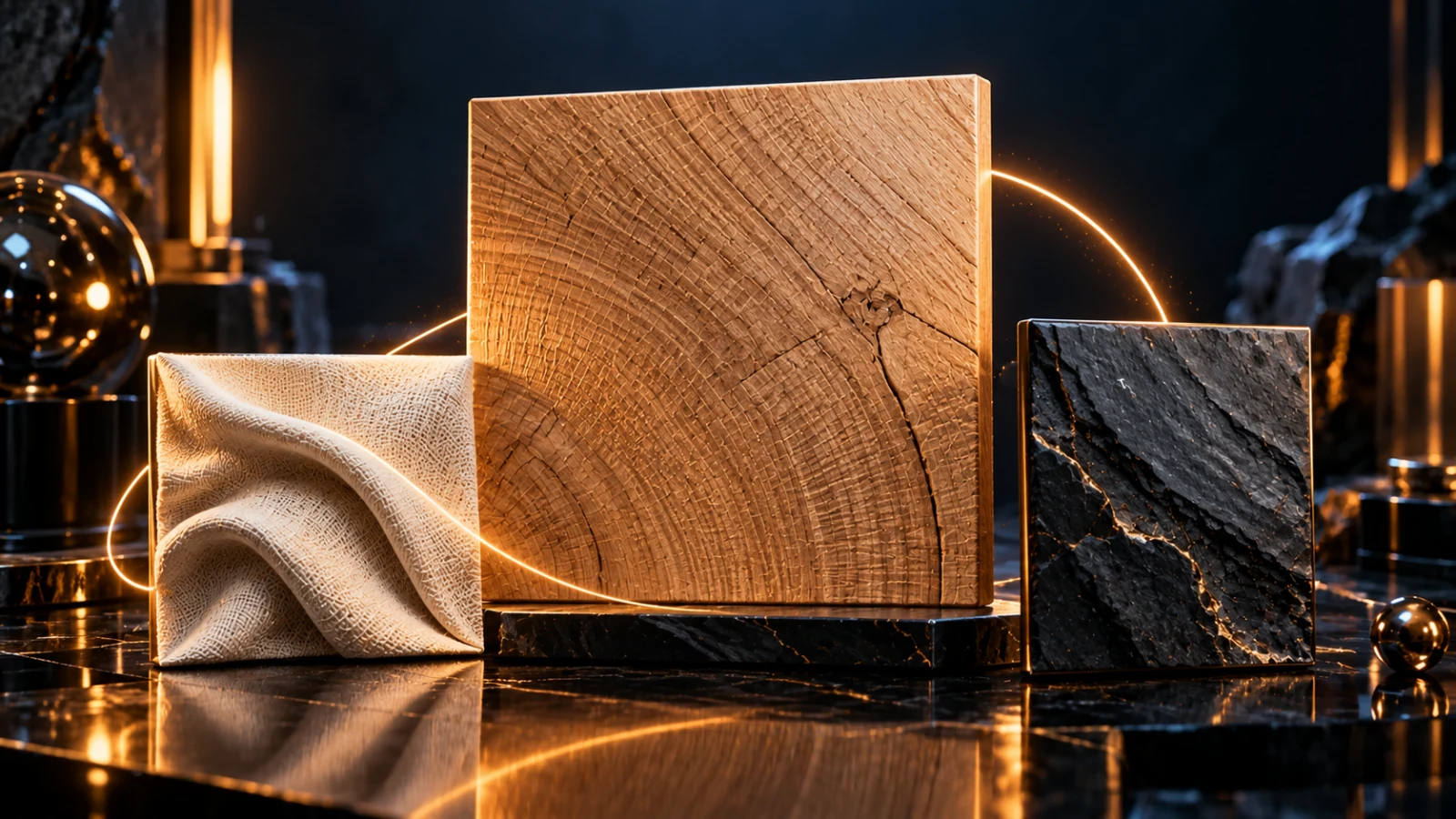
An AI texture generator turns a material description into an image: oak grain for a mood board, woven linen for a background, or slate for an album-art concept. In SynthPulse, use the existing image studio to generate that surface from text or adapt a reference photo.
Try a wood texture prompt. Choose a model and check its credit quote before generating. This opens a prompt, not a free or automatic generation.
These are suggested prompts to adapt. They are not a gallery of verified model outputs, and a texture image is not automatically a seamless tile or a complete 3D material.
How to generate an AI texture
- Choose the material and its use. “Linen background for a poster” gives you a clearer target than “beautiful fabric.” Decide whether you need a flat surface or a photograph of a material on an object.
- Open the image studio. Use text-to-image for a new surface. For an existing grain or weave, attach a reference and select a compatible image-to-image model.
- Describe scale and lighting. Say whether the fibers, pores or grain should be fine or coarse. Ask for even light when the image will sit behind text or become a design asset.
- Choose the aspect ratio and available output size. A square is convenient for tile testing; a wide image may suit a banner. Larger output adds pixels, not proof that the pattern repeats.
- Generate one image and inspect it. Check for unwanted objects, a bright center, perspective lines and changes in material. Refine the brief before buying more variations.
You can compare Seedream 5.0 Lite and Pro, GPT Image and Nano Banana in the same studio. Model choice, output options and image count affect the quote. There is no separate texture-generation subscription.
AI wood texture generator prompt
For a flat oak surface, remove the words that imply furniture or a room. A request for “an oak table in a cozy studio” asks for a scene, including its light and perspective.
Square texture image of pale oak grain, viewed straight on. Fine parallel grain running vertically, subtle variation between fibers, matte unfinished surface. Soft even lighting across the whole image. Fill the frame with one continuous wood surface. No planks, furniture, knots larger than a thumbnail, borders, letters or perspective.
If the grain is too busy, ask for finer detail and fewer dark knots. If you actually need floorboards, replace “no planks” with the width and direction of the boards. Keep those as different briefs: a continuous surface and a board layout solve different tasks.
AI fabric texture generator prompt
Specify the weave before the color. Linen, ribbed jersey and coarse wool should not look like the same surface with different tints.
Close flat view of natural ivory linen, fine visible woven threads with slight irregularity, matte finish, neutral even light. Uniform scale across the frame, no folds, seams, buttons, clothing, shadows from objects or text. The fabric surface fills the entire square.
For a poster background, inspect a small preview with your title over it in a layout editor. If the weave competes with the title, reduce its contrast instead of blurring the final image until the fibers disappear.
AI stone texture generator prompt
Choose one stone and one finish. “Marble granite slate” gives the model conflicting surfaces.
Flat front-facing texture image of charcoal slate, fine layered mineral detail, low-contrast variation, dry matte surface. Diffuse even light, no directional highlights. No rocks, tiles, grout, wall edges, lettering or perspective. One continuous surface filling the frame.
For pale marble, replace the material with “warm white marble with sparse thin grey veins.” If the veins start resembling cracks, describe their thickness and spacing rather than adding more style words.
Use a reference texture without redrawing the scene
Attach a clear crop of the material you want to adapt. A large room photo makes the model decide whether to reproduce the room, the floor or the wall.
Use the wood grain in the reference as the material guide. Create a flat square surface with the same fine grain scale. Shift the color toward warm honey oak. Remove the room, furniture, cast shadows and perspective. Keep the light even across the frame.
This is a generative edit, so individual grain lines can change. If you need the original surface pixel for pixel, crop and correct the photograph in an image editor. For a color-only edit, see the AI color changer prompts.
Is an AI texture automatically seamless?
No. “Seamless” in a prompt expresses the goal; it does not prove that the left edge matches the right or the top matches the bottom. SynthPulse does not currently provide a dedicated seam-repair or tile-validation tool.
To check a candidate, repeat the exported image in a 2×2 grid in an editor. Inspect the two central joins at full size, then zoom out to look for a repeated bright spot or obvious large mark. An image can pass the edge check and still produce a distracting repeating pattern.
If you see a seam, repair it in a texture editor or revise the prompt and check the next output. Do not call the asset tileable until you have inspected the exported file itself.
Can I generate PBR texture maps?
The image studio returns images. It does not export a coordinated set of albedo, normal, roughness and displacement maps, or package a material for Blender or a game engine. A rendered stone surface can serve as a concept or input to another workflow; it is not a ready-to-use PBR material by itself.
For a background, also check the final crop, contrast and output dimensions. For a 3D material, use a material-authoring workflow to create and validate the required maps.
Price and the next attempt
Texture prompts use the selected image model's normal credit pricing. Check the current quote in the studio, especially after changing size or quantity. Start with one image, save its prompt and settings, and compare only one change on the next attempt.
Generate a texture image, compare Seedream versions, or read the reference-image editing guide before adapting a photo you already have.