
AI Wedding Photo Generator: Couple Portrait Prompt Guide
This AI wedding photo generator guide offers couple-photo prompts for studio, garden and editorial portraits, with tips for checking faces and clothing.
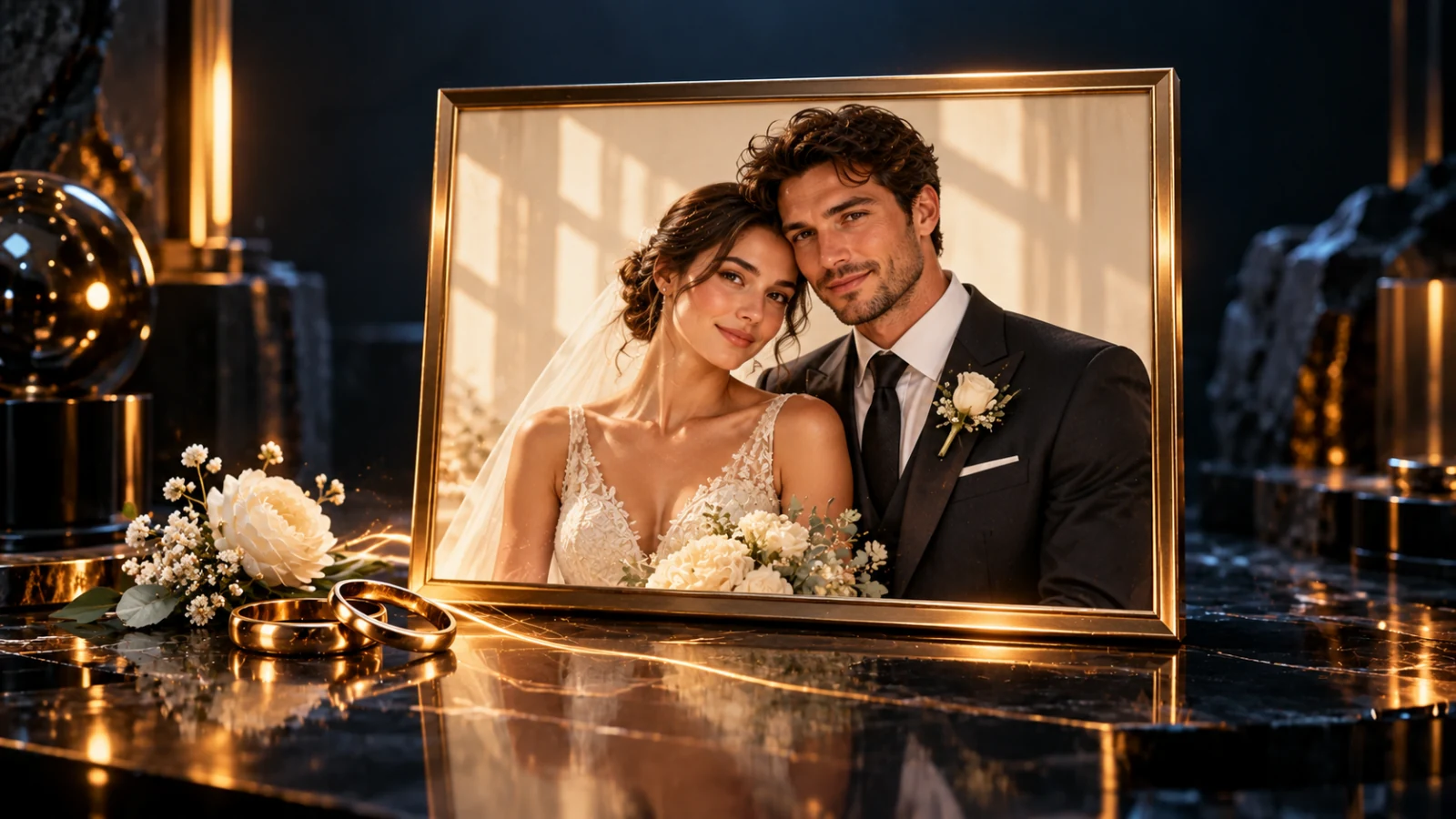
An AI wedding photo generator can help you explore a portrait style before a shoot: an ivory studio backdrop, an outdoor ceremony, or a restrained editorial look. In SynthPulse, this is an image-generation task in the existing studio. Start from a couple photo if you want the people to remain recognizable; use text alone for fictional subjects and a mood-board concept.
Open a couple-photo wedding prompt. Attach a clear reference, choose an image-to-image model, and check the quote. The prompt link does not upload a photo or start a generation.
The prompts below are starting points, not a verified before-and-after gallery. Face likeness, hands and clothing can change. Treat the result as a created portrait, rather than a record of a wedding that actually happened.
Turn a couple photo into a wedding portrait
- Choose a clear source. A photo of both adults, facing a similar direction in even light, gives the model a less ambiguous reference. Avoid tiny faces, sunglasses and heavy beauty filters.
- Attach it in the image studio. Choose a model that supports reference images. Seedream, GPT Image and Nano Banana have image-editing options; compare the current settings and quote.
- Describe the change and the parts to keep. Ask for wedding clothing and a setting, then name facial features, hair, pose and each person's position as preservation requests.
- Start with one waist-up portrait. Fewer visible hands and less background give you fewer details to inspect on the first attempt. Choose a supported portrait aspect ratio if it suits your layout.
- Review the result in the studio. Compare each face with the source before judging the dress, flowers or light. A pleasing style does not compensate for the wrong person.
If you use two separate photos, state which person comes from which reference. A shared photograph can make their relative height and position clearer, but no reference arrangement guarantees an exact identity match.
Couple wedding portrait prompts
Replace the clothing, setting and composition to suit the people in your reference. Keep one style per attempt so that you can tell what changed.
Classic studio wedding photo
Use the two adults in the reference as the couple. Create a waist-up wedding portrait against a warm ivory studio background. One person wears simple ivory formalwear and the other a charcoal suit. Keep each person's facial features, hair and left-right position as close to the reference as possible. Soft window light from the left, natural skin texture, relaxed expressions. No text, logos or extra people.
The plain setting makes facial drift easier to notice. If the model swaps the people, name them by reference order and clothing before requesting a more elaborate background.
Garden wedding portrait
Keep the two adults from the reference together in the same left-right order. Create a waist-up wedding portrait in a quiet garden with soft green foliage and small white flowers in the background. Simple wedding formalwear, overcast daylight, natural skin texture. Keep their faces recognizable. Avoid branches crossing faces, extra people, text and elaborate hand poses.
If flowers become the subject, reduce them to “a softly blurred green background.” Get the people right before adding a decorated arch or a crowded venue.
Editorial black-and-white portrait
Create a restrained black-and-white wedding portrait of the two adults in the reference. Preserve their facial features and hairstyles as closely as possible. Waist-up composition, simple formalwear, neutral background, soft side light and moderate contrast. Natural skin texture, calm expressions, no words or added jewelry.
Black and white can change the mood without adding a complicated scene. Check the eyes and jawline carefully: stronger contrast can hide a likeness problem in a thumbnail.
Can I make wedding photos without uploading a face?
Yes, you can describe fictional adults in text-to-image mode. This is useful for exploring clothing, bouquet colors, lighting and a photographer's brief. It will not produce your own face from a written description.
Wedding photography concept featuring two fictional adults in understated ivory and charcoal formalwear. Waist-up composition, soft overcast daylight, quiet garden background, natural expressions and realistic fabric texture. No resemblance to a named person, no text or logos.
For a mood board, keep the pose and framing similar while comparing the studio, garden and editorial versions. Present them as visual references for the shoot, not promises of a photographer's final work.
Check faces before choosing a style
View the image at full size, then compare it with the reference:
- Identity: eyes, nose, smile, jawline, hairline and distinguishing features on both people.
- Clothing: collars, seams, buttons, jewelry and fabric edges where the two bodies overlap.
- Hands: finger count, wrist shape and whether rings merge into skin or flowers.
- Background: a believable horizon, consistent light and no extra limbs or faces.
- Output: actual pixel dimensions, crop and sharpness at the size you intend to use.
If one person's likeness fails, simplify the scene and edit the request. More adjectives about beauty will not correct the identity. A larger export also does not prove that missing facial detail has been recovered.
How much does an AI wedding photo cost?
There is no separate wedding-photo fee. Generation uses the image model and options you choose in the studio; check the displayed credit quote before submitting. Creating a portrait does not include professional retouching, print preparation or a photo-book layout.
Start with one image. Review it before paying for another variation. For a print, check the lab's required dimensions and inspect the final export; a portrait that looks fine on a phone may not hold up at a larger size.
Change the outfit, color or background
Work on one change at a time after choosing a composition. A request to change the dress color, pose, venue and lighting together gives the model several reasons to redraw the faces.
For color-only concepts, use the AI clothes color changer prompt. For general reference editing, read the image-to-image guide. These are generative edits, so compare the people with the original after every attempt.
If you later want motion, a compatible image-to-video model can use a finished portrait as a reference. That is a separate video generation with its own quote; this guide covers still photos.
Create a wedding portrait concept, or compare image models and pricing before choosing the first attempt.